As an Amazon Associate, we earn from qualifying purchases. Some links on this site are affiliate links at no extra cost to you. Our recommendations are based on thorough research and editorial judgment.

When Cameras “Freeze”: Reset Routines and Firmware Concepts (No Brand Talk)

When your camera freezes, it can be frustrating. Common causes include battery issues, firmware glitches, or SD card problems. To fix this, try these reset routines: remove and reinsert the battery, or perform a soft reset by pressing the menu button. If issues persist, consider a factory reset after backing up your files. Regular firmware updates from the manufacturer’s website can enhance performance. Stick with us to explore more preventive strategies and troubleshooting tips.
Key Takeaways
- Remove and reinsert the battery as a quick fix for camera freezing issues.
- Perform a soft reset by pressing the menu button to address minor glitches.
- If freezing persists, consider a factory reset while ensuring data backups.
- Regularly check for firmware updates from the manufacturer to enhance performance.
- Utilize high-quality and compatible memory cards to prevent freezing problems.
How to Understand Camera Freezing Issues?

You may be interested



Have you ever found yourself in a crucial moment, only to have your camera freeze up on you? It can be so frustrating, right? This freezing issue usually happens because of firmware glitches, problems with memory, or even issues with your SD card. Let’s break it down and figure out what you can do about it.
First off, if your camera is acting up, a great start is to remove and reinsert the batteries. It’s such a simple step, but it can often reset the system and clear up minor glitches. If that doesn’t do the trick, consider doing a factory reset. This will wipe out unnecessary settings and give your camera a fresh start. Also, make sure to check for firmware updates regularly—manufacturers often release updates that fix known bugs leading to freezing issues.
Now, keep in mind that improper settings and underlying hardware problems can also lead to these frustrating freezes. Make it a habit to review your camera settings and perform some regular maintenance. For example, when transferring files, using the “USB CARD READER” connection mode can drastically reduce the chances of freezing. And if you ever face issues with your photos, image recovery software could come in handy for maintaining your precious memories.
Unlike traditional cameras, some cellular game cameras offer remote management options, allowing you to adjust settings through an app, which may help in troubleshooting issues without physical access.
Understanding these steps can make a world of difference. Once you’ve tackled freezing issues, you can turn your attention to enhancing your photography skills. Whether it’s learning new techniques or experimenting with different settings, there’s always something new to explore!
Recommended Products

Nikon AUTHORIZED Model- Includes Full Nikon USA WARRANTY. Nikon Z 7II - The next generation Z series flagship camera. The Nikon Z 7II promises high-resolution stills and video for discerning users who need ultimate performance to achieve exceptional image quality in every shot. A powerful upgrade to the Nikon Z 7, the Z 7II is the ideal camera for capturing highly detailed portraits, landscapes, weddings, events, and commercial photography when there is no compromise on image quality.

24.5MP BSI-CMOS FX-format sensor and EXPEED 7 processing engine unlock high-resolution, high-speed up to 30fps

Bundle Items Include:Tamron 35-150mm f/2-2.8 Di III VXD Lens (Nikon Z), Extreme PRO 64GB Card, Protective Lens Pouch, Memory Card Reader, 3 Piece Filter Kit, 12" Flexible Tripod, Cleaning Kit, Lens Cap Keeper
Essential Camera Reset Routines
If your camera is freezing up on you, let’s chat about how to properly reset it. Sometimes, a good reset is all it needs to get back to functioning smoothly. First off, have you tried removing the battery? Simply turn off your camera, take the battery out, and leave it for a few minutes. This little trick can often clear up temporary glitches that may be causing the freezing.
Now, if you’re dealing with minor quirks, a soft reset might do the trick. Just press the menu button; you’d be surprised how often that simple action can resolve small software hiccups without causing you to lose any of your settings. It’s like a quick reboot for your camera!
However, if those freezing issues just won’t budge, you might need to consider a factory reset. Just keep in mind that this will revert everything back to the original settings, so make sure you’ve backed up any important pictures or data before going down that path.
If freezing keeps happening after these resets, it might be best to reach out to a professional. There could be a hardware issue at play that needs a bit more attention. Remember, your camera is an investment, so taking care of it is key! For those using trail cameras, integrating high-capacity batteries can also help maintain device stability. Want to explore some common camera maintenance tips next?
Recommended Products

❗【Warm Notice】📌BIG Attention Here: Functions for Ford has been greatly limited dated from Aug 25. 2025, it's highly recommended to re-ach out to 💌autelcare@ outlook . com with your VIN to check compatibility. ❌NOT support for Toyota, for Lexus, for Renault. Please kindly send VIN to autelcare@ outlook . com to check compatibility before order. If any questions when using the scanner, please consult us first, we will provide the most efficient resolution.
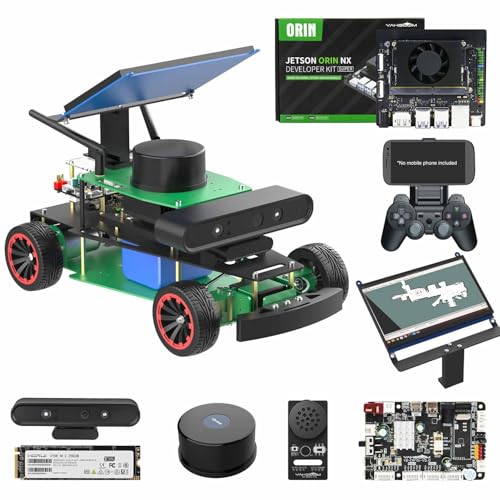
Rosmaster R2 has 3 versions (Standard, Superior, Ultimate), which can be used with 4 development boards (Raspberry Pi 5, Jetson Nano 4GB, Jetson ORIN NANO SUPER, Jetson ORIN NX SUPER), please pay attention to whether the version you choose includes development board.

【PROFESSIONAL 10" SEWER INSPECTION SYSTEM】features 10'' 1080P IPS screen (135° flippable, 270° rotatable) for superior operator visibility. Equipped with 145° waterproof camera and 7mm cable for clear, extended pipe inspections. Integrates 512Hz transmitter, self-leveling, distance counter, 5x zoom, and ergonomic keyboard for efficient and reliable sewer and pipe diagnostics.
Firmware Updates to Fix Camera Freezes
Hey there! If your camera has been acting up and freezing on you, updating the firmware is a smart move to get things back on track. Think of firmware as the software that helps your camera run smoothly. It’s similar to how your phone gets updates to improve performance. Just like you’d check for updates on your phone, you should do the same for your camera!
First off, these updates often fix annoying bugs that can cause your camera to freeze during a shoot. For instance, if your camera freezes when you try to take a quick snapshot, the latest firmware may resolve that issue. Each camera model usually has release notes that outline what improvements have been made, so it’s worth taking a peek at those before hitting update.
Remember, it’s important to follow the manufacturer‘s directions when installing these updates to avoid any hiccups. Sometimes, updates can also help with compatibility if you’ve recently switched to a new lens or software. So, regularly checking the manufacturer’s website can really help keep your camera in top shape.
Keeping yourself informed about these updates not only enhances your camera’s performance but also ensures you don’t miss out on capturing those perfect moments! Speaking of which, have you experienced any specific issues with your camera? Let’s troubleshoot together!
Additionally, optimizing your device’s battery life and power can significantly reduce freezing issues related to low energy or poor power management.
Recommended Products

High Image Quality featuring a New 45 Megapixel Full-frame CMOS Sensor.

1.0-inch 4K UHD CMOS image sensor

45.7MP stacked CMOS sensor and EXPEED 7 processing engine.
Effective Strategies to Prevent Camera Freezes
Hey there! If you’ve ever experienced your camera freezing at the worst possible moment, you know how frustrating that can be. Thankfully, there are some straightforward strategies to help keep your camera running smoothly and prevent those pesky freezes.
First off, one of the easiest things you can do is to update your camera’s firmware regularly. Think of firmware as the brain of your camera—keeping it updated helps to fix any bugs and improves how stable it operates. Just like your phone, a simple update can make a world of difference!
Another handy tip is to manage your power wisely. If you’re going to step away for a bit, it’s a good idea to remove the battery. This little step can help avoid those random resets or glitches that can pop up when you switch back on.
When it comes to memory cards, make sure to use high-quality ones that are fully compatible with your camera. Format them directly in the camera before using them—it’s a small effort that can really pay off in performance, especially when you’re capturing high-resolution images.
Don’t forget about tweaking your settings! If you find yourself shooting in bursts or capturing fast action, take some time to test out how your camera behaves in those situations. It’s much easier to troubleshoot in a calm environment than when the heat is on at an event.
Lastly, isolate your connected devices. If you’ve got accessories plugged in, try disconnecting them one at a time to see if any cause conflicts that lead to freezing.
Additionally, ensuring your camera uses fast trigger speeds can help improve performance and reduce the chance of freezes during rapid capturing.
Recommended Products
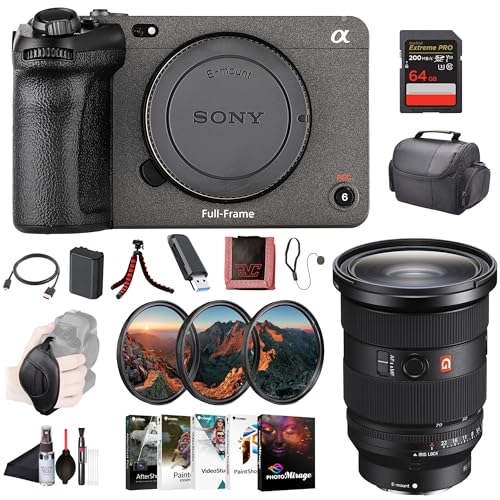
Sony USA Authorized. Bundle Includes: Sony FX3 Full-Frame Cinema Camera + Sony FE 24-70mm f/2.8 GM II Lens, 64GB Extreme PRO SDXC Memory Card, 3 Piece Filter Kit, Soft Bag, NP-FZ100 Battery, Memory Card Reader, Corel Photo Software, Flexible Tripod, Hand Strap, Memory Card Wallet, Cleaning Kit, HDMI Cable, Lens Cap Keeper

High Image Quality featuring a New 45 Megapixel Full-frame CMOS Sensor.

Items Include: 1 x Sony FX3 Full-Frame Cinema Camera, 1 x Sony FE 24-70mm f/2.8 GM II Lens, 1 x SecureDigital 64GB Extreme PRO Cmemory Card, 1 x 3 Piece Filter Kit, 1 x Soft Bag, 1 x NP-FZ100 Battery, 1 x Memory Card Reader, 1 x Photo Software With PhotoMirage, AfterShot, Painter Essentials, PaintShop Pro, and Video Studio, 1 x Flexible Tripod, 1 x Hand Strap, 1 x Memory Card Wallet, 1 x Lens Cap Keeper, 1 x Cleaning Kit, 1 x HDMI Cable
Troubleshooting Common Freezing Scenarios
Hey there! Dealing with a camera freezing can really get in the way of your photography fun, right? It’s like hitting a brick wall when you’re ready to snap that perfect shot. But don’t worry, I’ve got some practical tips for you to troubleshoot those annoying freeze-ups.
First off, have you tried pressing the menu button? It sounds simple, but sometimes that little action can kick your camera back into gear. If that doesn’t work, let’s try power cycling. Just pop the battery out for about 30 minutes—yep, just leave it alone for a bit—and then put it back in. This little reset can work wonders!
Another thing to keep in mind is updating your firmware. Manufacturers often release updates that fix bugs and improve how the camera works. It’s worth checking the manufacturer’s website every now and then to see if there’s a new version you can download. Oh, and if you’re transferring files, using a card reader instead of a direct connection can help prevent those pesky freezes during downloads.
Additionally, ensuring that your camera’s battery and power source are functioning properly, especially when relying on solar-powered operation, can help maintain smooth performance and prevent freezes.
Hopefully, one of these tips gets your camera back in action! If problems persist, it might be worth looking into some deeper issues or reaching out to support. Now, let’s shift gears and talk about common causes of camera freezing.
Recommended Products

26.1MP BSI APS-C X-Trans CMOS 4


ERGONOMIC DESIGN: this power supply is easy to carry and permits one-handed removal of batteries enabling smooth operation in the field while being 40% more efficient than traditional chargers
Frequently Asked Questions
What Causes a Camera to Freeze?
When our cameras freeze, it’s like a sudden storm disrupting a serene day. Hardware malfunctions, overheating, battery issues, or memory card corruption can all contribute. Let’s troubleshoot together to keep our creativity flowing smoothly!
How to Stop a Camera From Freezing?
To stop our camera from freezing, we should prioritize camera optimization. Let’s regularly update firmware, use quality SD cards, and reset settings as needed. Regular battery checks and proper settings adjustments can really help too.
Why Does My Webcam Randomly Freeze?
Our webcam might randomly freeze due to outdated firmware, incorrect settings, or incompatible drivers. Also, let’s check USB cable quality and power management settings; those can also affect performance considerably. Keep everything updated to prevent issues.
Why Is My Camera Getting Stuck?
Our camera’s getting stuck is often due to technical glitches, like firmware issues or memory errors. We should keep it updated and regularly reset the device to maintain peak performance and avoid freezing problems.