As an Amazon Associate, we earn from qualifying purchases. Some links on this site are affiliate links at no extra cost to you. Our recommendations are based on thorough research and editorial judgment.

SD Card Errors: Symptoms, Recovery Steps, and Prevention

SD card errors show up in different ways. You might see your device not detecting the card, getting error messages, or files disappearing. To recover lost data, we can use software like Disk Drill or the CHKDSK tool. To prevent issues, you should buy quality cards, keep them clean, and back up important files. Always handle cards carefully to avoid damage. There’s more we can explore about types of errors and tips for card longevity.
Key Takeaways
- Common symptoms of SD card errors include detection failures, formatting prompts, slow speeds, and missing files, indicating potential corruption or damage.
- Utilize data recovery software like Disk Drill and run CHKDSK to fix file system errors and recover lost files.
- Test the SD card on different devices to identify potential connection issues or physical damage; consider professional recovery for severe damage.
- Prevent SD card issues by purchasing high-quality cards, regularly formatting them, and ensuring proper storage and handling practices.
- Regularly back up important files to multiple secure locations to mitigate data loss and enhance recovery options in case of errors.
Recognizing Common Symptoms of SD Card Errors for Quick Troubleshooting
You may be interested



Hey there! So, let’s chat about SD card errors. When you’re using an SD card, there are some telltale signs that something might be off. For instance, if your device suddenly can’t detect the card, that’s a big red flag. Or, if it starts throwing error messages telling you to format it, that could mean the card is corrupted.
Another thing to watch for is if you experience weird read/write issues, like taking ages to transfer files, which usually hints at a problem with the file system. And have you ever found that some files are missing out of nowhere, or your card is showing up as RAW? Definitely alarming!
These symptoms often mean that the SD card could be damaged or corrupted, risking your important data. That’s why it’s super important to back up your files regularly. For example, if you’ve got memorable vacation videos stored there, consider uploading them to a cloud service or transferring them to another device. By spotting these issues early, you can take steps to protect your files and keep your SD card working smoothly. What other tech troubles do you want to understand better?
Effective Recovery Steps for Damaged SD Cards
Hey there! If you’ve ever had a damaged SD card, you know just how frustrating it can be—especially when it’s packed with important files. Don’t worry, though; recovering data from a damaged SD card is totally doable with the right steps.
First, if your SD card is recognized by your computer but isn’t reading or writing properly, you might want to try using some data recovery software. A popular one is Disk Drill. Just download it, and it can help you scan the card for recoverable files. I’ve heard some folks have successfully retrieved photos they thought were lost for good!
Now, if your SD card is acting up and showing up as RAW or you’re getting error messages, there’s a handy tool called CHKDSK that can help. Simply open the command prompt and enter `chkdsk X: /r /f /x`—just replace “X” with your actual drive letter. This command checks for file system errors and attempts to fix them, which can often get your card working again.
Sometimes, the issue might not be with the card but with the device you’re using. So, it’s a good idea to test the card on another camera or computer. If it works there, you know it might be a connection problem with the original device.
If you discover that the card has physical damage—like a crack or bend—it’s best to leave it alone and contact professional data recovery services. Trying to fix it yourself could make things worse.
And remember, once you’ve worked through this, it’s a great reminder to keep regular backups of your important files. This way, you can prevent the stress of losing data in the future. Using a camera model that supports cloud-based storage can also help safeguard your data by automatically backing up files remotely.
So, what’s next on your mind about SD cards or data recovery?
Recommended Products
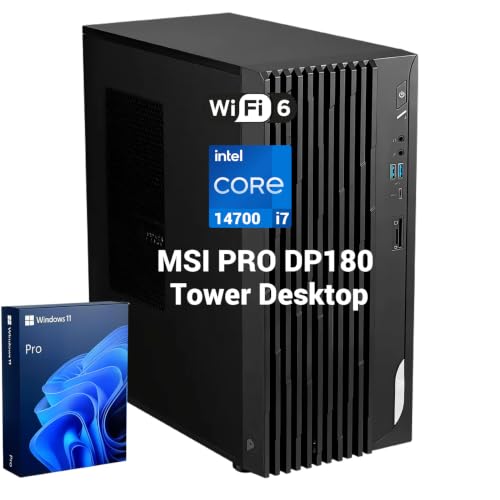
【HIGH-PERFORMANCE BUSINESS PROCESSOR】 Equipped with Intel Core i7-14700 processor to handle heavy multitasking, data analysis and commercial software for reliable business operation

[Speed] Read/Write up to 150/130 MB/s, V30 speed grade, Ultra HD (UHD) 4K video recording, UHD 4K gaming.

[App] A2 grade provides faster App loading performance for Smartphones & Tablets
Simple Ways to Prevent SD Card Corruption
When it comes to preventing SD card corruption, the first step is to buy high-quality SD cards from brands you can trust—like SanDisk or Lexar. These cards tend to be more reliable, so you can avoid the headaches that come with a failing card. After you’ve got a solid card, make sure to store it in a protective case. It’s best to keep it away from extreme temperatures and moisture, as those can seriously damage your precious data.
Another good habit is to regularly check and repair your card. This means you should gently clean it to remove any dust or debris that might compromise its performance. Formatting the card every so often can help too; think of it like giving your card a fresh start. Just make sure you back up your files first! Keeping these tips in mind can save you a lot of frustration down the line, ensuring that your SD card stays in top shape. Now, let’s explore how to safely back up your files to avoid losing anything important!
Using devices with cloud storage options can provide an additional layer of safety for your backups, minimizing the risk of data loss.
Different Types of SD Card Errors and Their Causes
Hey there! Let’s chat about the different types of SD card errors you might encounter. Knowing these can save you from a headache later on. For instance, if you see a message saying “card not formatted,” it usually means something’s gone awry with the file system—kind of like a book being all jumbled up and hard to read.
Another common issue is having read/write problems. This can happen if your SD card gets physically damaged, like if you accidentally drop it, or if you’ve been a little rough when handling it. If your computer or camera isn’t recognizing the card at all, that could be a sign of malware or perhaps bad sectors—basically, parts of the card that have gone bad.
It’s also good to keep in mind that file corruption can happen during data transfers if there’s a power outage or if you yank the card out too quickly. You might even run into moments where the card insists it’s full when it’s actually not. In those cases, formatting might be your best bet to clear things up. And if you ever find yourself facing data loss, don’t panic—there are recovery services that specialize in getting your files back.
Taking some steps to handle your SD card carefully can make a huge difference. For instance, always safely eject it before removing it from your device, and avoid using it in different devices frequently. This way, you can enjoy your photos and files without the hassle of these pesky errors! Choosing a high-capacity SD card designed for high-resolution storage can also help prevent storage-related errors.
Recommended Products

PRO-LEVEL WRITE SPEEDS. Up to 305MB/s (2) write speed helps clear your camera’s buffer fast [512GB–2TB capacities (1)].


[Ultra HD] Read/Write up to 150/120 MB/s. 4K Ultra HD video displaying/recording
Essential Tools for Data Recovery
Hey there! So, you know how frustrating it can be when you run into SD card errors? Trust me, having the right data recovery tools at your disposal makes all the difference in these situations. Let me share a few essential tools that can help you out.
First up is Disk Drill. This handy software allows you to preview your files before you recover them, which is fantastic when you’re dealing with corrupted SD cards. It supports various card types, making it a versatile choice for many users. Imagine you accidentally deleted some precious photos – with Disk Drill, you can easily check what’s recoverable before you hit that restore button.
Next, there’s CHKDSK, a built-in utility on Windows. If your SD card has logical errors, running CHKDSK can fix those problems before you even think about recovery. It’s as simple as opening the Command Prompt and typing a couple of commands! It’s a great first step to save you time and effort.
Then we have TestDisk, which is especially helpful if your file system is damaged. This open-source program repairs it without needing to install anything. Plus, it can recover lost partitions, which is awesome if you accidentally formatted your card.
For really tough cases, you might want to consider professional data recovery services. They have specialized tools that can achieve results that DIY methods sometimes can’t match. It’s a bit more expensive, but if your data is critical, it could be worth it.
Lastly, don’t forget about antivirus software. It’s important to scan your SD card for malware that could be causing those pesky errors in the first place. Keeping your files safe means ensuring your card is free from threats.
When choosing recovery tools, also consider their compatibility with high-resolution images because cameras with large photo files require efficient handling for successful recovery.
Now that you’ve got the scoop on these essential tools, you might be wondering what steps to take next. Let’s talk about some simple preventive measures to avoid SD card issues altogether!
Recommended Products

Bundle Includes: Sony CFexpress 320GB Type A Memory Card with 800MB/s Read and 700MB/s Write Speed (2-Pack)

【Processor】 Intel Core i5-10400 (2.9 GHz, with a maximum turbo frequency of 4.3 GHz, featuring 6 cores)

【Processor】 Intel Core i5-10400 (2.9 GHz, with a maximum turbo frequency of 4.3 GHz, featuring 6 cores)
Top Strategies for SD Card Longevity
Hey there! If you’ve ever dealt with a frustrating SD card error or lost important files, you know how crucial it is to keep your SD card in good condition. Let’s chat about some straightforward strategies for extending the life of your SD cards.
First off, make it a habit to regularly back up your data. This means copying your files to different secure locations, like an external hard drive or cloud storage. This way, if something goes wrong, you won’t lose everything at once. Imagine losing all those precious vacation photos because of a corrupt card—definitely something to avoid!
Next, always remember to safely eject your SD cards before removing them from your device. This little step helps prevent any system corruption that could happen during file transfers. Think of it as giving your card a gentle goodbye before pulling it out.
You’ll also want to store your SD cards in protective cases. This protects them from extreme temperatures or physical stress—from dropping them to leaving them in a hot car. A sturdy case can be a lifesaver, ensuring your card stays safe while you’re on the go.
It’s a good idea to perform routine checks on your SD cards, too. Running diagnostic scans or using tools like CHKDSK can help identify issues before they become big problems. Regular maintenance can help you catch small glitches that you can fix easily, rather than facing a crisis later.
And don’t forget to invest in high-quality SD cards from reputable brands. They might cost a bit more upfront, but their reliability and durability are worth it. You want a card that you can trust to keep your files safe!
For outdoor use, choosing devices with IP66 waterproof ratings can safeguard your SD cards against environmental damage, helping preserve data integrity in harsh conditions.
Recommended Products

This Camera Bundle Items Includes: Canon EOS R6 Mark II Mirrorless Camera, Canon RF 24-105mm f/4-7.1 IS STM Lens, Canon EF 75-300mm f/4-5.6 III Lens, T Mount Adapter For Canon RF, .43x AUX Wide Angle Lens, 2.2x AUX Telephoto Lens.

High-End Camera Bundle Accessories: Along with the accessories from Sony, the Sony 85mm f1.4 GM II product bundle includes additional accessories like 64GB SDXC UHS-I (V30) Memory Card, 77MM 3PC Filter Kit W/ UV, CPL, FLD, 3-In-1 USB Micro Card Reader, Weatherproof Card Case, Hurricane Blower, Soft Lens Pouch

INCLUDED – Sony Alpha a7 III Mirrorless Camera with FE 28-70mm f/3.5-5.6 OSS II Lens | 1-Year Limited Warranty | Rechargeable Battery | AC Adapter | USB Cable | Shoulder Strap | Body Cap | Accessory Shoe Cap | Eyepiece Cup | Lens Cap | Lens Hood | Rear Lens Cap | Bundle items include Slinger Alpine 160 Bag | SanDisk Extreme PRO 32GB SD Card | Extra NP-FZ100 Battery | 55mm UV, CPL & ND Filter Kit | Cleaning Kit | Card Reader | SD Card Case
Frequently Asked Questions
How to Recover Error SD Card?
To recover an error SD card, we can start using data retrieval software and troubleshooting techniques. It’s essential to back up files, consider card formatting tips, and explore storage alternatives for data loss prevention.
What Are the Symptoms of a Bad SD Card?
When we notice symptoms like slow performance, frequent errors, inaccessible files, or unusual noises from our cards, it could indicate data corruption, card malfunction, or formatting issues that affect device compatibility and may lead to file loss.
How to Rectify SD Card Error?
To rectify SD card errors, we should start by checking card compatibility and our device support, then utilize error analysis and recovery software for data retrieval. Regular backups and proper formatting techniques help prevent future issues, too.
How Do I Get Rid of an SD Card Error?
To get rid of an SD card error, we should check for hardware issues and use recovery software. If needed, SD card formatting can help, but let’s back up data first to avoid memory loss.